Registration and Access via Digital Certificate
This guide describes the process of registering with ISBE and subsequently accessing the Portal using a Legal Representative Digital Certificate (Certificado de Representante de Persona Jurídica).
The process has two parts:
- Registration in ISBE — initial onboarding as an affiliated company.
- Portal access — authentication in subsequent sessions.
eIDAS certificate: why it is required
The eIDAS Regulation (EU 910/2014, updated by eIDAS2) establishes the European legal framework for electronic identification and trust services. It defines the security levels and requirements that digital certificates must meet to have legal validity across the EU.
ISBE requires a Qualified Certificate for Legal Representative because:
- It guarantees that the person registering is legally authorised to act on behalf of the company.
- The certificate has been issued by an audited and EU-recognised Qualified Trust Service Provider (QTSP).
- It provides the "high" assurance level required for legally valid blockchain operations.
Where to obtain one
In Spain, qualified Legal Representative certificates are issued by providers recognised by the Ministry of Economic Affairs. The most common ones are:
- FNMT-RCM (Fábrica Nacional de Moneda y Timbre): www.sede.fnmt.gob.es
- Camerfirma
- ANF AC
- Firmaprofesional
If your company already has a valid Legal Representative certificate, you can use it directly. There is no need to obtain a new one.
1. Registering in ISBE using a Digital Certificate
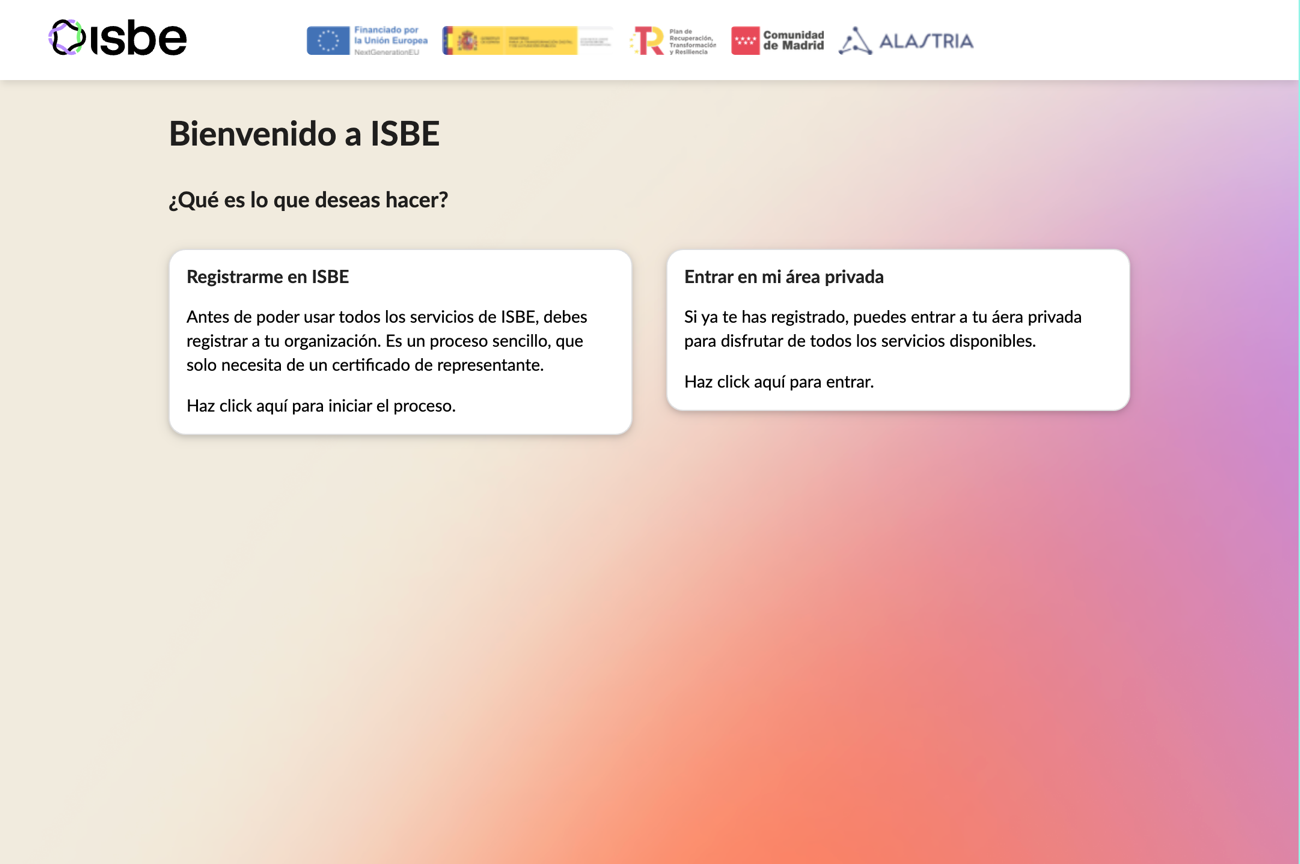
Step 1. Accessing the welcome page
Go to the ISBE welcome page and click on the "Register with ISBE" area.
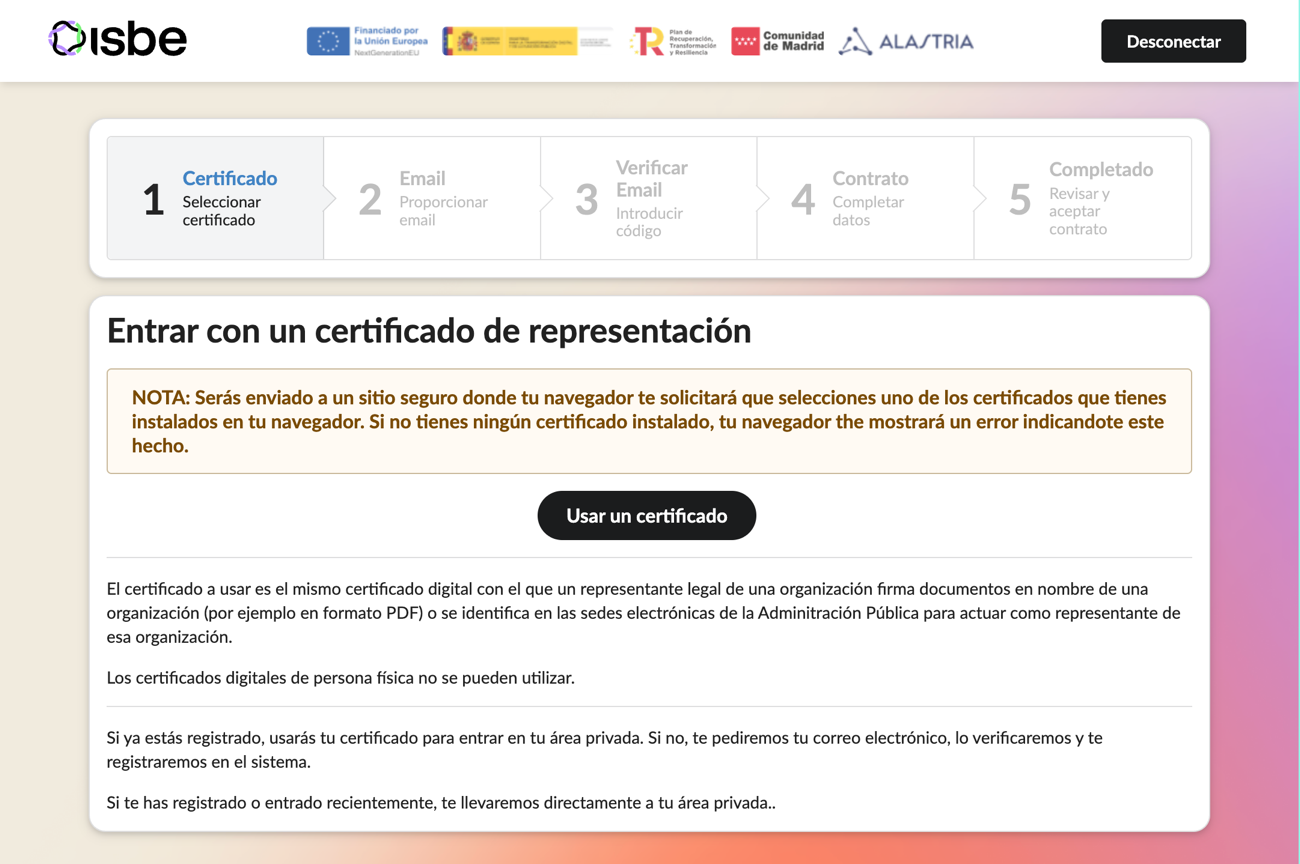
Step 2. Accessing the registration screen
On this screen you will find the option to identify yourself using a Digital Certificate. Click the "Use a Certificate" button.
Step 2b. Selecting the certificate
The browser will display a pop-up window with the digital certificates installed on your device:
- Select the appropriate Legal Representative certificate.
- Verify that the certificate is valid and correctly installed in the browser.
- Click Accept.
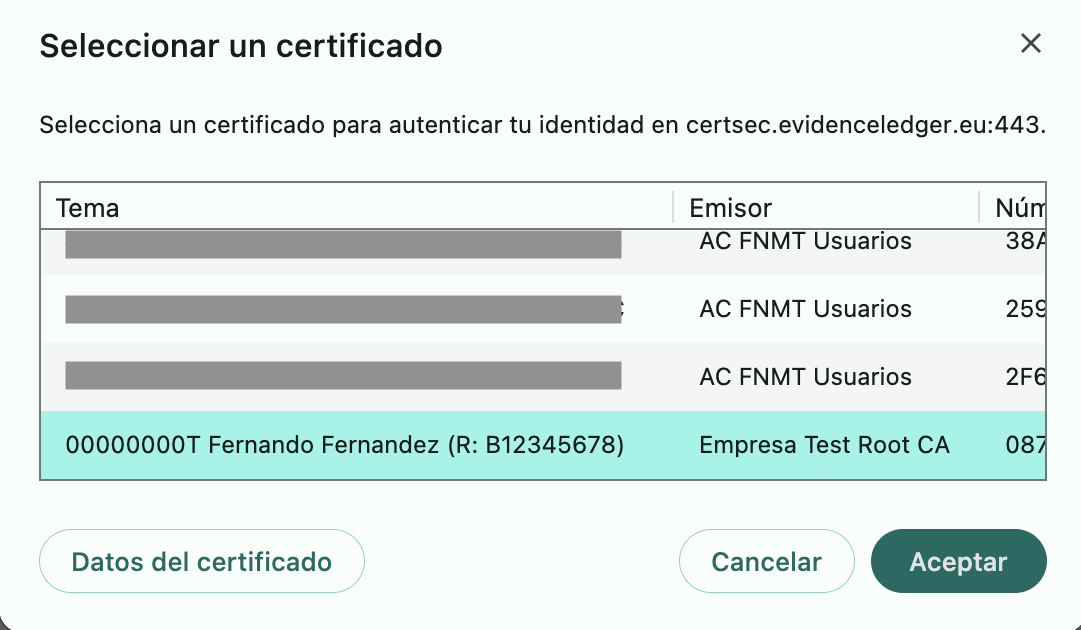
The system will automatically validate that the certificate is valid, not expired or revoked, and is a recognised certificate. If validation is successful, the process will continue.
Step 3. Completing the registration form
Once the certificate is validated, the system will display the registration form pre-filled with data from the certificate. Review the displayed data, enter your email address, and click "Send Verification Code".
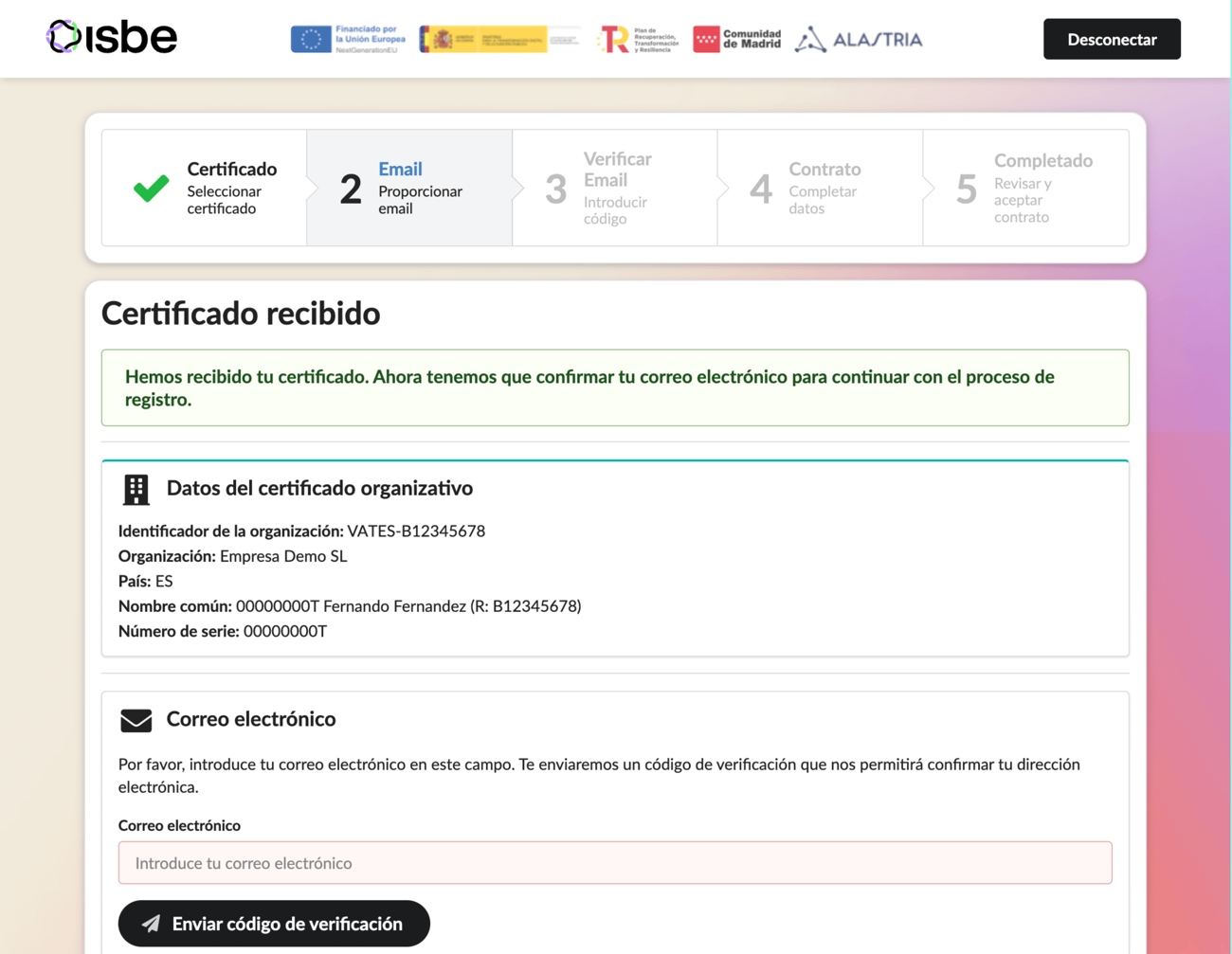
Step 4. Email confirmation
A Verification Code will be sent to the email address you provided. Enter that value in the corresponding field and click "Confirm Email".
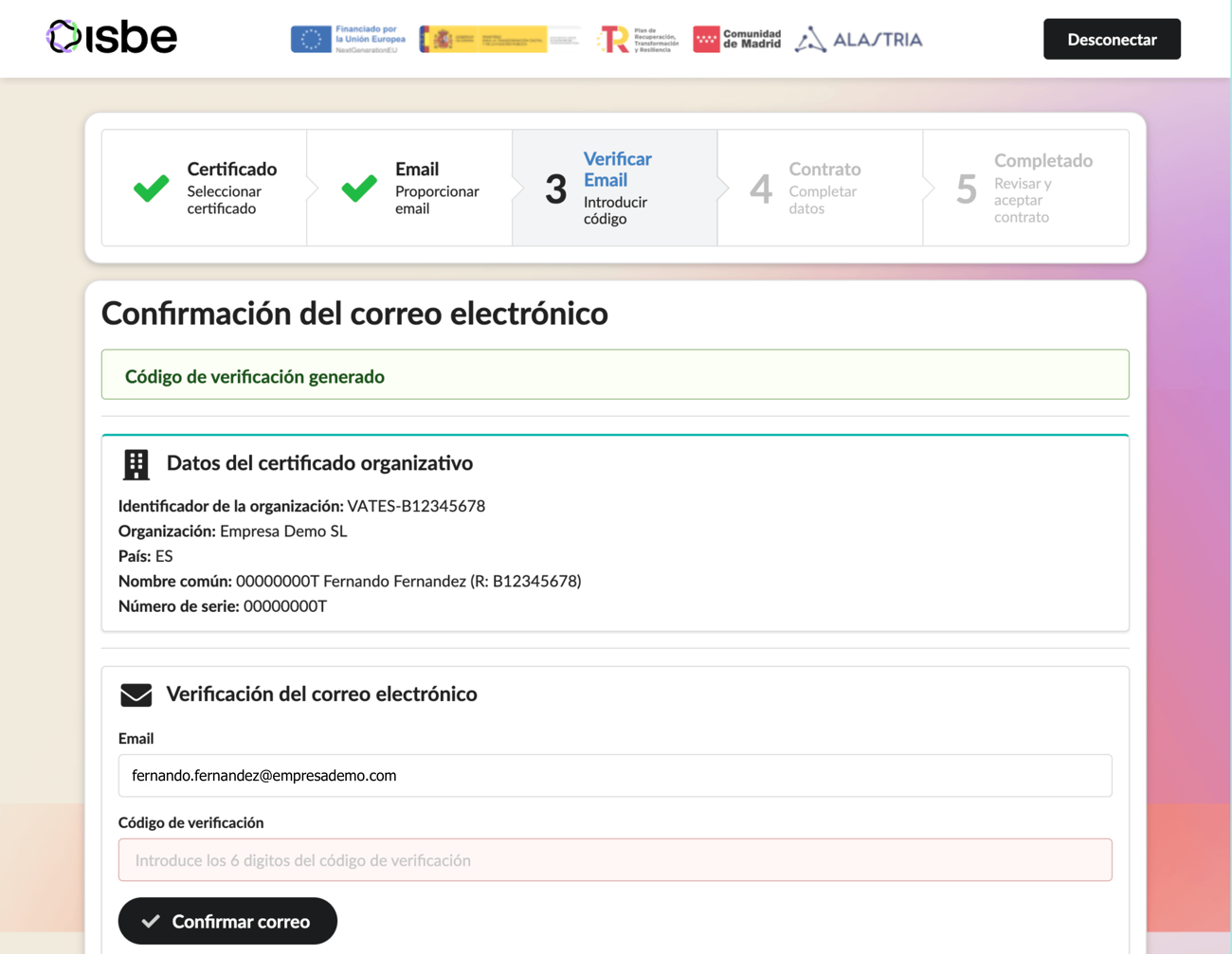
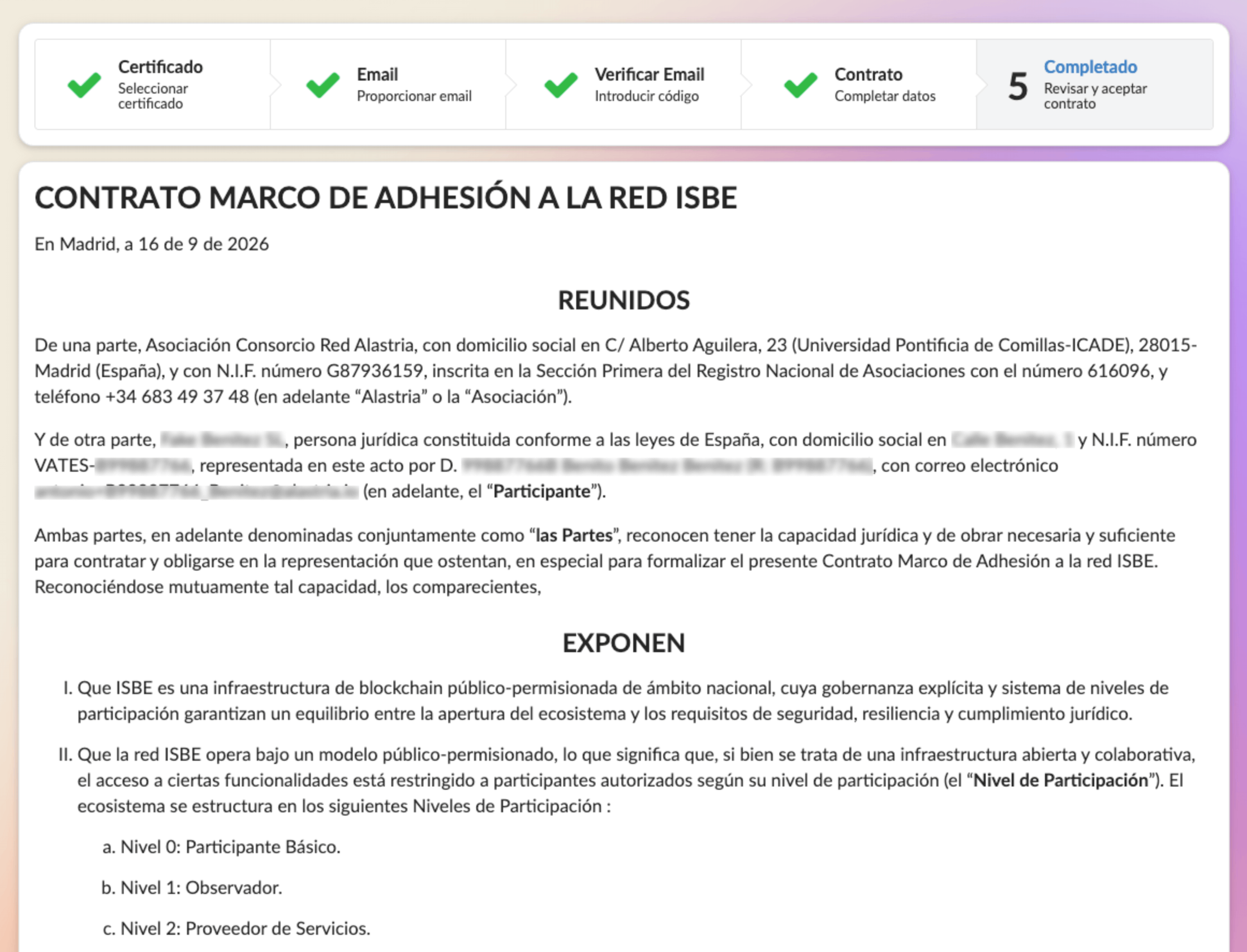
Step 5. Creating the contract
This screen displays the unfilled ISBE Framework Adhesion Contract, with the data extracted from your certificate and registration. Read the content carefully and accept the conditions of Annex I (Basic Level). If registering at Developer Level, also accept Annex II. Then click "Generate Contract".
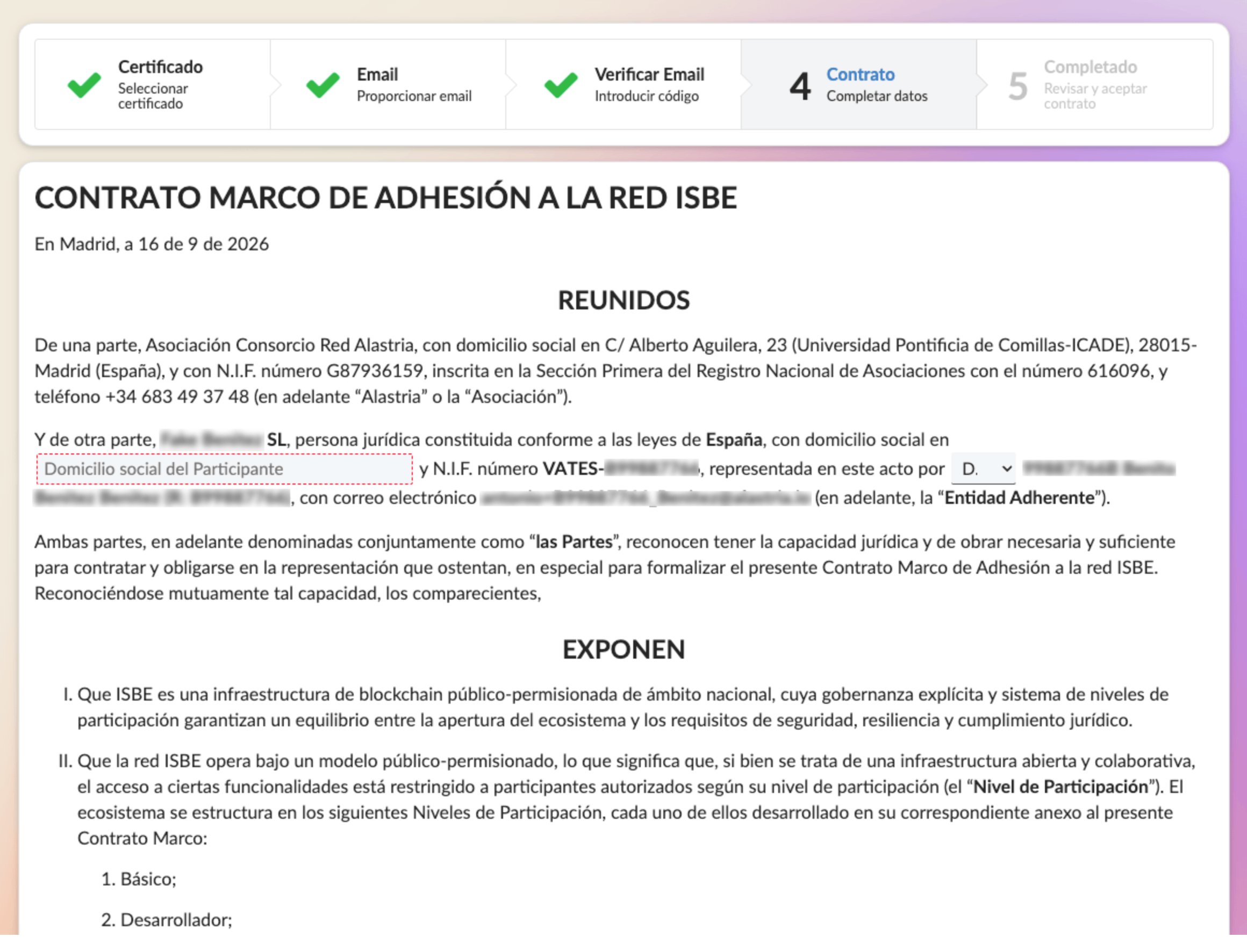
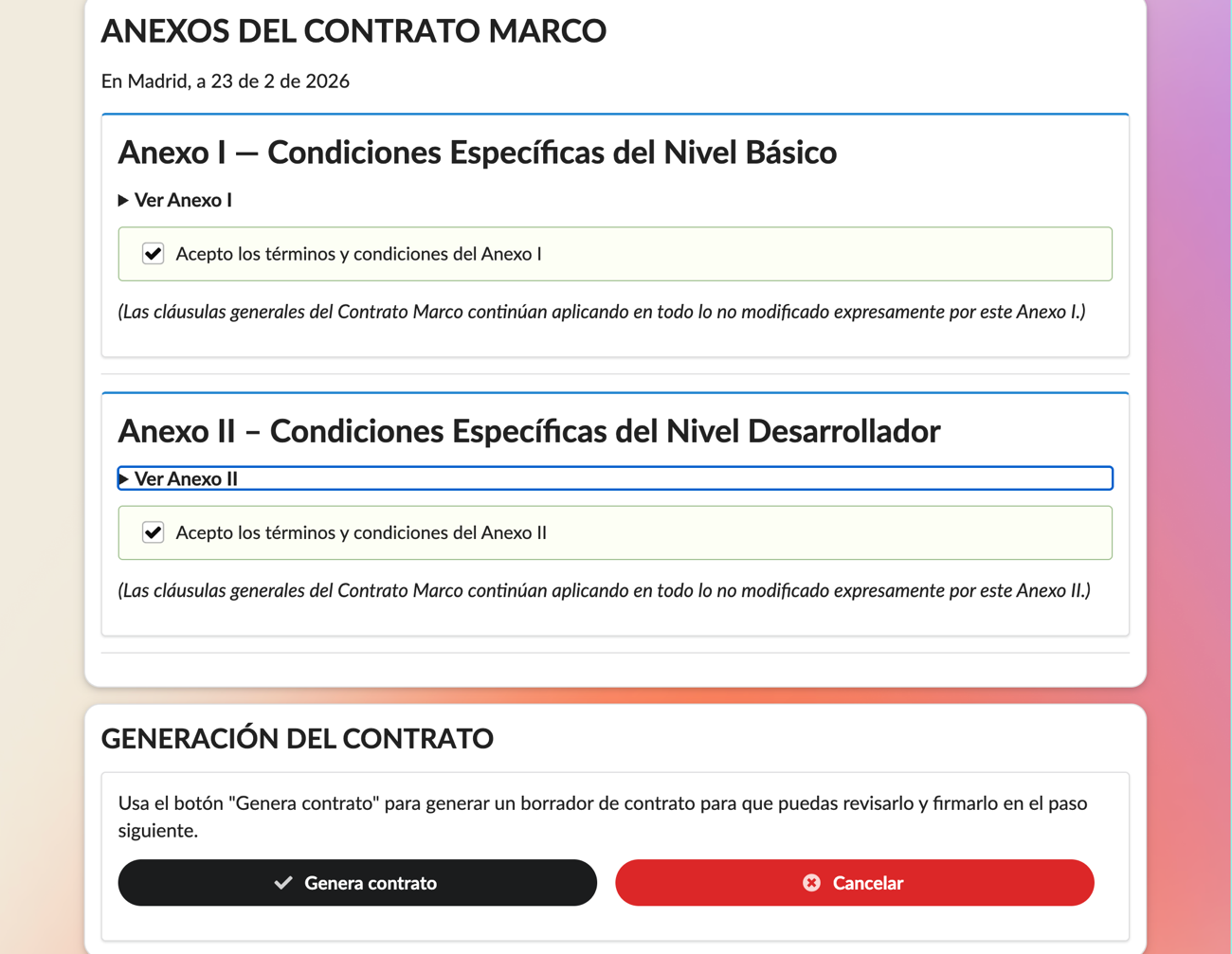
Step 6. Viewing and signing the contract
The completed Framework Adhesion Contract is displayed. Review it and sign it digitally with your certificate.
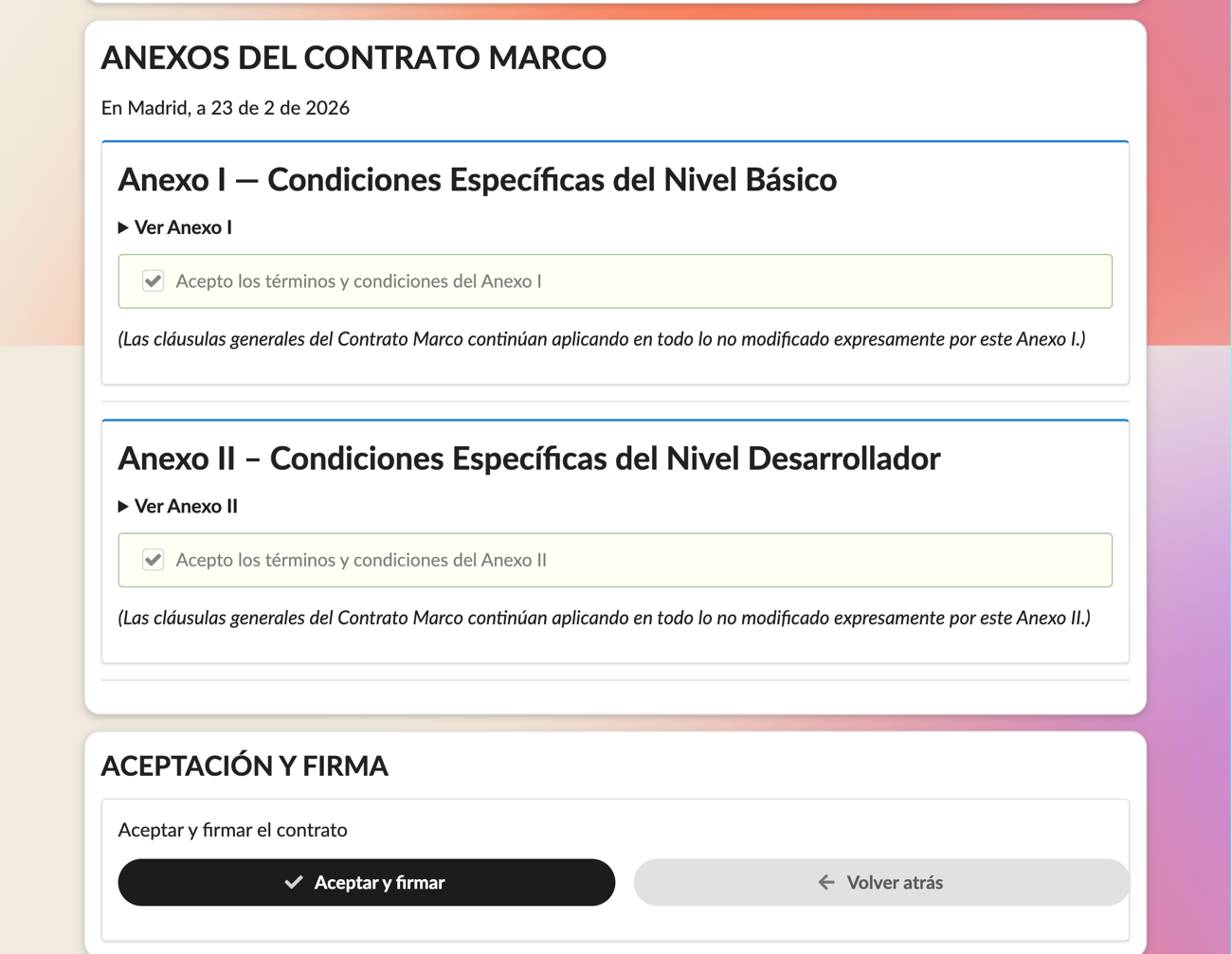
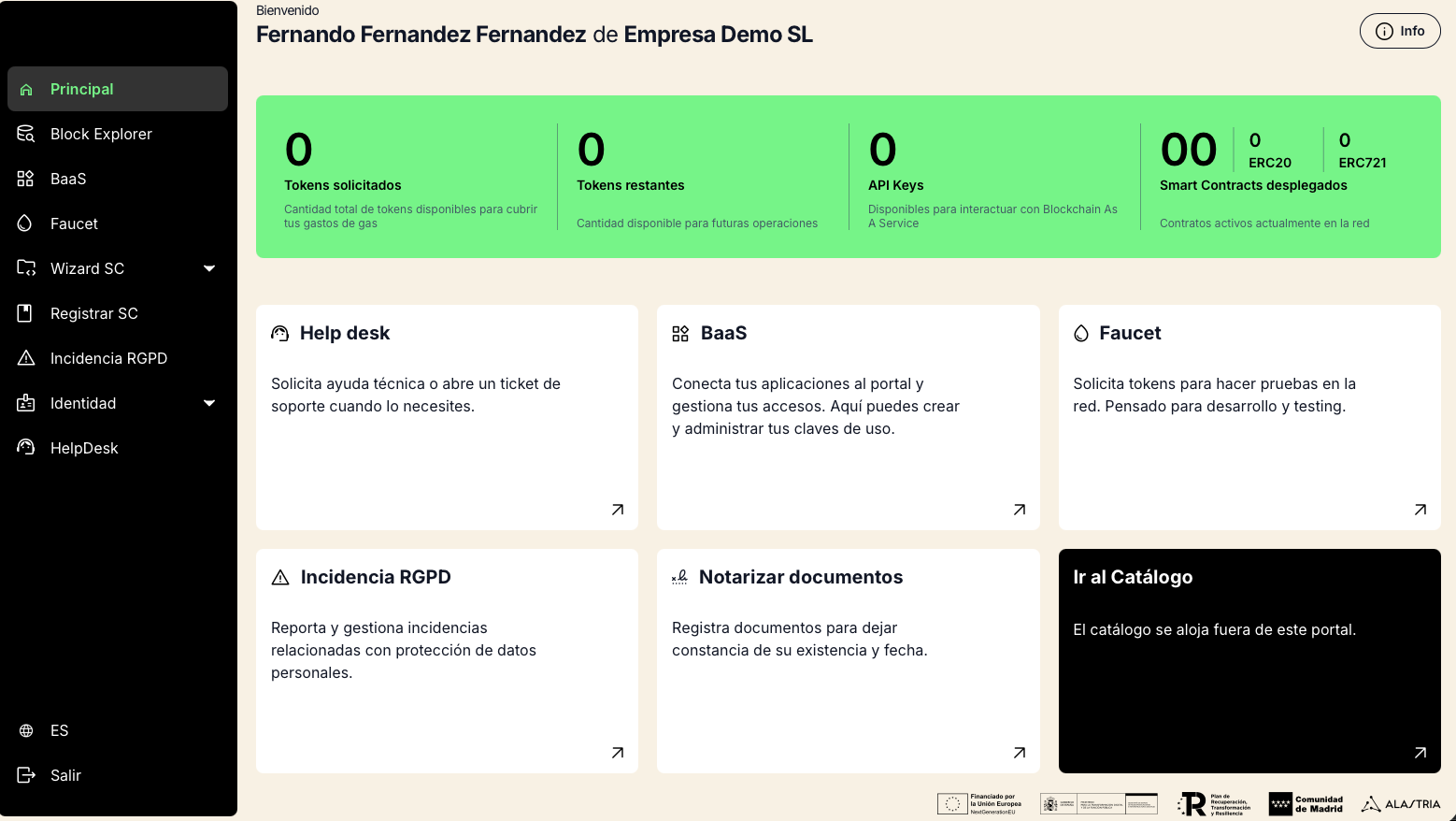
Once signed, the user is formally registered with ISBE. The system will automatically redirect you to the ISBE Portal access page.
2. Accessing the ISBE Portal using a Digital Certificate
Step 1. Accessing the login screen
Go to the main ISBE Portal page and click the "Log in" button.
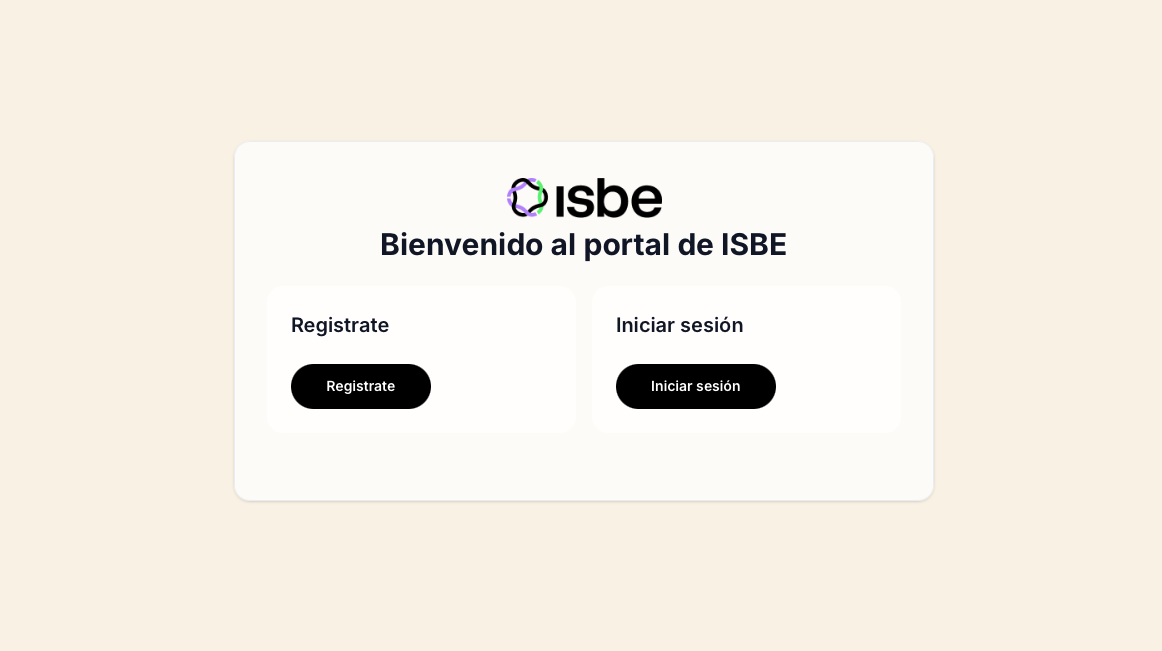
Step 2. Accessing the login screen
On the access screen you will find the option to authenticate using a Digital Certificate. Click the "Certificate" button.
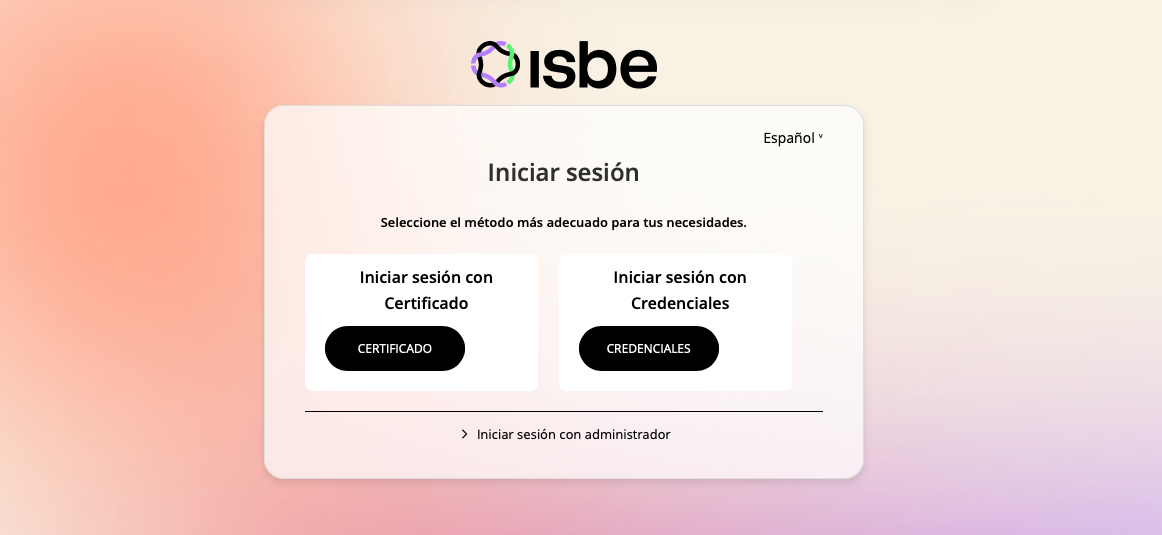
Step 2b. Selecting the certificate
The browser will display the pop-up with installed certificates. Select the same certificate used during registration (Legal Representative) and click Accept.
The system will validate that the certificate is valid, not expired or revoked, that the user is registered in ISBE, and that the certificate corresponds to a correctly registered user. If validation is successful, access will be granted automatically.
Step 3. Accessing the private area
Once your identity is validated, the system will redirect you to the private area of the ISBE Portal.